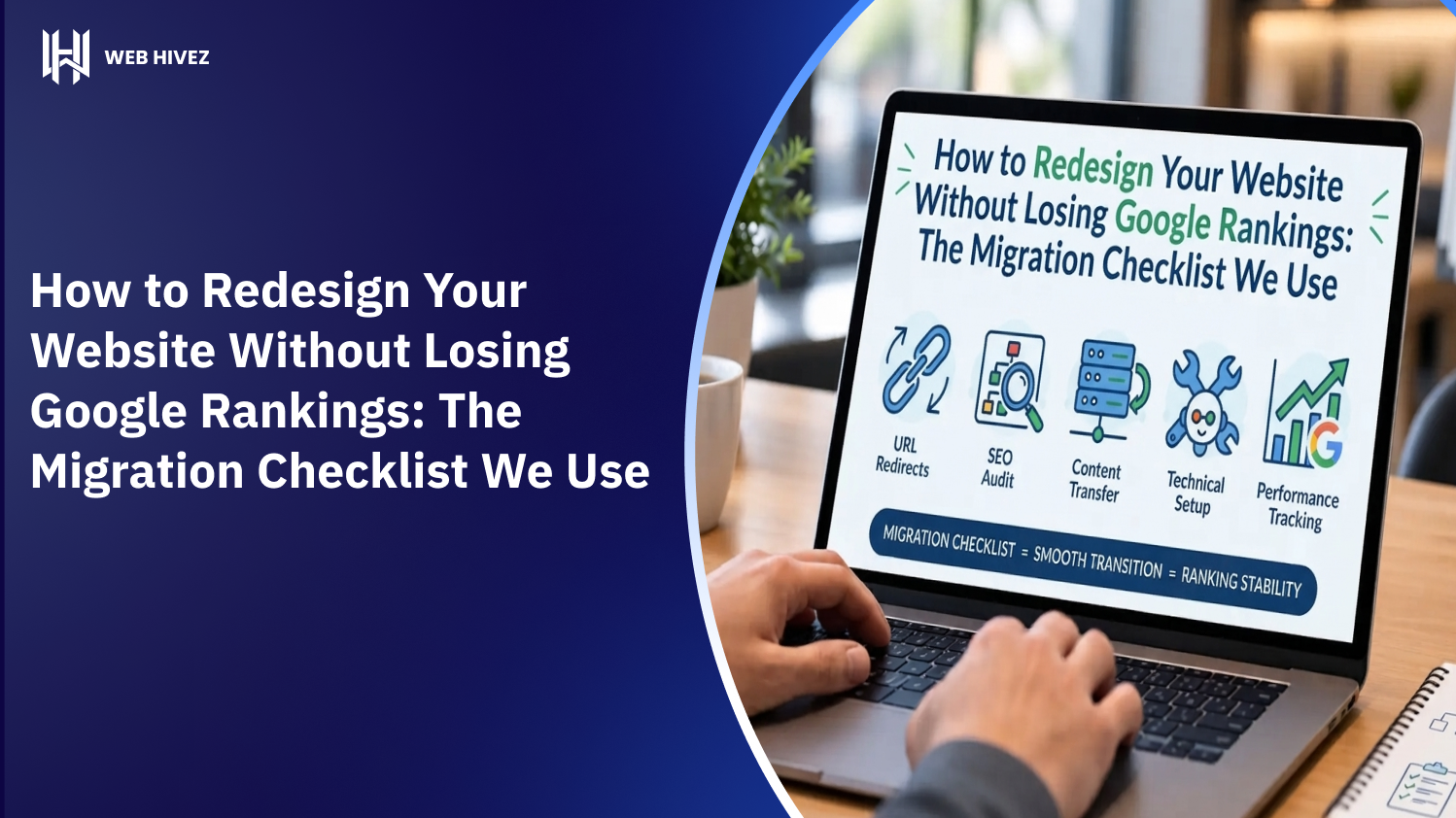
Moving a site to a new host or domain name can feel overwhelming, but a smooth Website Migration is simple when you follow the proper process. Whether you want a faster web hosting provider or a better domain name, transferring your files and database carefully keeps your site online and your search engine rankings safe. Our expert website support team can help you handle technical transitions smoothly.
What is Website Migration?
Website Migration is the process of transferring a website from one server, web host, domain name, or platform to another.
When you move a physical store, you must move all your products, fixtures, and store signs to the new address. A digital site works the same way: you need to copy your website files, shift your database, and point your domain address to the new location.
Why Do Website Owners Move Their Sites?
People decide to start a Website Migration for several key reasons:
- Slow performance on the current host: A slow host hurts visitor experience and reduces overall sales.
- High hosting costs: Moving to a budget-friendly provider saves money over time.
- Domain name rebranding: Changing your business name requires moving content to a new domain address.
- Better security features: Upgrading to higher quality servers protects your customer data.
Essential Steps Before Starting the Process
Before moving anything, taking a few core prep steps protects your content from unexpected errors:
- Back up everything first: Create a complete copy of your WordPress database and public files so you can restore them if needed.
- Gather login details: Collect access info for your current web hosting account, domain registrar, and new hosting control panel.
- Pick a low-traffic time: Schedule the move during your slowest traffic hours to avoid disturbing active visitors.
Step 1: Backup Your Existing WordPress Site
Your first job is downloading a full backup of your entire site.
You can use popular WordPress backup plugins or manually download files through FTP tools like FileZilla. You also need to export your SQL database through phpMyAdmin. Store these copies safely on your local computer.
Step 2: Set Up the New Web Hosting Account
Log into your new web hosting provider dashboard and set up a domain space.
Do not install a fresh WordPress setup using quick installers if you plan to import your full site backup. Instead, prepare a blank database and database user inside the new hosting control panel.
Step 3: Upload Files and Import the Database
Now transfer your site content to the new server location:
- Upload your WordPress files into the root folder on the new host using FTP.
- Open phpMyAdmin on the new hosting platform and import the database file you saved earlier.
- Edit the
wp-config.phpfile to connect your uploaded files with your new database name, username, and password.
Step 4: Update Your Domain Name Servers
Your domain name tells browsers where to find your website.
Log in to your domain registrar account and update the domain name server records to match your new host. Name server changes usually take a few hours to update completely across the globe.
Step 5: Test Your Site and Fix Links
Once the name servers update, open your browser and test your website thoroughly.
Check your main pages, contact forms, images, and menu links. If you changed your domain name during the Website Migration, run a search and replace tool to update old internal links to your new web address. For extra help keeping your site speed fast on the new host, check out our site speed optimization services.
Common Pitfalls to Avoid
Avoid these mistakes to ensure a seamless transition:
- Deleting old hosting files too soon: Keep your old hosting active until you confirm the new site works perfectly.
- Forgetting search engine redirects: If your domain name changed, set up proper 301 redirects so search engines send users to the right pages.
- Ignoring SSL certificates: Install a valid security certificate on the new host to keep your site secure.
Conclusion
A successful Website Migration comes down to careful planning, accurate file transfers, and thorough testing. By taking the right steps, you preserve your design, keep your valuable traffic, and enjoy better host performance.
Ready for a Stress-Free Website Move?
Want to make sure your WordPress site is transferred safely without downtime or lost data? Let us handle the entire technical process for you. Contact our technical team today or explore our custom WordPress solutions to give your website the smooth transition it deserves!
Frequently Asked Questions
How long does a WordPress site transfer take?
Most simple website moves finish within a few hours, though domain name server updates can take up to 48 hours to complete worldwide.
Will my website go down during the transfer?
If you keep your old web hosting active while configuring the new server, your visitors will experience zero downtime.
Can a Website Migration hurt my search rankings?
If done correctly, your rankings stay safe. If you change domain names, you must set up permanent redirects to preserve your search standings.
Is it better to use a plugin or move files manually?
Plugins work well for standard sites, but manual moves offer better control for large websites with huge databases.
Should I cancel my old host immediately after the move?
No, keep your old host active for a few days to ensure all internet traffic routes smoothly to the new server.