How to Test Website Accessibility for Free: Tools & Step-by-Step Guide
Website accessibility ensures that people with different abilities can navigate and interact with your website. A website should be usable by people who rely on keyboards, screen readers and other assistive technologies.
If you want to test website accessibility free, several online tools can help identify issues without requiring an expensive accessibility audit.
This guide explains how to check website accessibility, which free tools to use and how to fix common problems. It also covers practical accessibility testing for WordPress websites.
What Is Website Accessibility?
Website accessibility means designing and developing websites so that people with disabilities can access information and complete important tasks.
An accessible website should support users with visual, hearing, motor and cognitive disabilities.
For example, visitors should be able to navigate menus using a keyboard, understand images through alternative text and read content without struggling with poor color contrast.
The Web Content Accessibility Guidelines (WCAG) provide internationally recognized recommendations for making digital content more accessible.
Accessibility is not limited to large organizations. Small business websites, online stores, blogs and service websites can all benefit from regular accessibility testing.
Why Website Accessibility Testing Matters
Accessibility testing helps website owners discover barriers that might prevent visitors from using their websites effectively.
Better User Experience
Accessible websites are generally easier to navigate and understand. Following professional web design best practices for small businesses can also improve accessibility and create a better experience for all visitors.
Clear headings, readable text, descriptive buttons and properly labeled forms help visitors complete tasks with fewer obstacles.
Improved Website Usability
Accessibility improvements often support broader usability.
For example, keyboard-friendly navigation can help users who cannot operate a mouse. Captions can help people watching videos without sound.
More Inclusive Digital Experiences
An accessible website allows more people to interact with your content and services.
This is particularly important for businesses that provide essential information, appointment booking systems or online services.
Support for Accessibility Standards
Regular testing helps identify issues related to WCAG requirements.
However, automated testing alone cannot confirm that a website meets every accessibility requirement.
How to Test Website Accessibility for Free
You can begin testing website accessibility without purchasing specialized software.
A practical approach combines automated testing with manual checks.
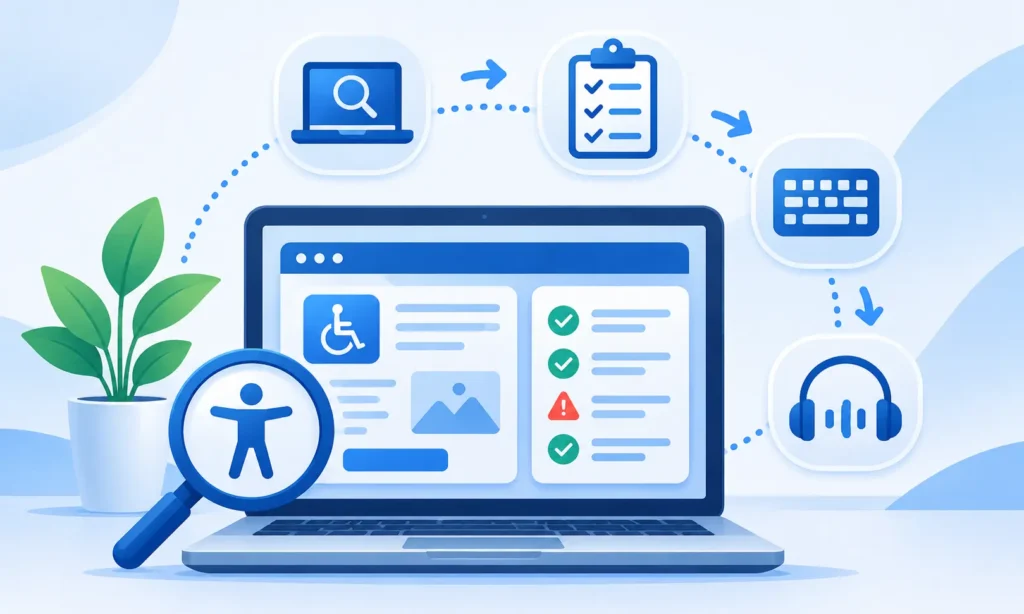
Step 1: Run a Free Accessibility Scan
Start by opening a free website accessibility checker.
Enter your website URL and run an automated scan.
A scanner may identify issues such as:
- Missing alternative text on images
- Insufficient text contrast
- Form fields without accessible labels
- Empty buttons or links
- Incorrect heading structures
- Certain accessibility-related HTML errors
Review the results carefully before making changes.
Step 2: Check Your Website With Google Lighthouse
Google Lighthouse also provides performance insights. For a deeper understanding of loading speed and responsiveness, explore our Core Web Vitals guide.
Google Lighthouse includes an accessibility audit that can help identify common technical issues.
To run a Lighthouse accessibility test in Chrome:
- Open the website you want to test.
- Right-click the page and select Inspect.
- Open the Lighthouse tab in Chrome DevTools.
- Select the Accessibility category.
- Generate a report.
- Review the findings and suggested improvements.
Lighthouse provides a score based on its automated accessibility checks.
A high score is useful but does not guarantee that every part of your website is accessible.
Step 3: Test Website Navigation With a Keyboard
Keyboard testing is one of the simplest manual accessibility checks.
Open your website and try navigating without using a mouse.
Use these keys:
- Tab: Move between interactive elements.
- Shift + Tab: Move backward through interactive elements.
- Enter: Activate links and buttons.
- Space: Activate supported controls.
- Escape: Close supported menus and dialogs.
Check whether every important interactive element can be reached and operated.
The currently focused element should also be clearly visible.
Step 4: Review Text and Color Contrast
Text must be readable against its background.
Poor contrast can make navigation menus, buttons and paragraphs difficult to read.
For WCAG Level AA, normal text generally needs a contrast ratio of at least 4.5:1. Large text generally requires at least 3:1.
Use an accessibility contrast checker to review important text and interface elements.
Step 5: Test Forms and Interactive Elements
Forms are essential for many business websites.
Check whether visitors can understand and complete forms using a keyboard and assistive technology.
Review the following:
- Every form field has a meaningful label.
- Required fields are clearly identified.
- Error messages explain what needs to be corrected.
- Buttons have descriptive names.
- Dropdowns can be operated with a keyboard.
- Focus remains visible while moving between fields.
A form that looks correct visually may still contain accessibility barriers.
Step 6: Review Mobile Accessibility
Accessibility testing should also include smaller screens.
Check whether text remains readable, buttons are easy to activate and content can be accessed without unnecessary horizontal scrolling.
Also test menus, forms and interactive components on mobile devices.
For WCAG 2.2 Level AA, the minimum target size requirement is generally 24 by 24 CSS pixels with specified exceptions.
7 Free Website Accessibility Testing Tools
Several tools can help you identify website accessibility problems.
Some operate directly in your browser while others allow you to enter a public website URL.
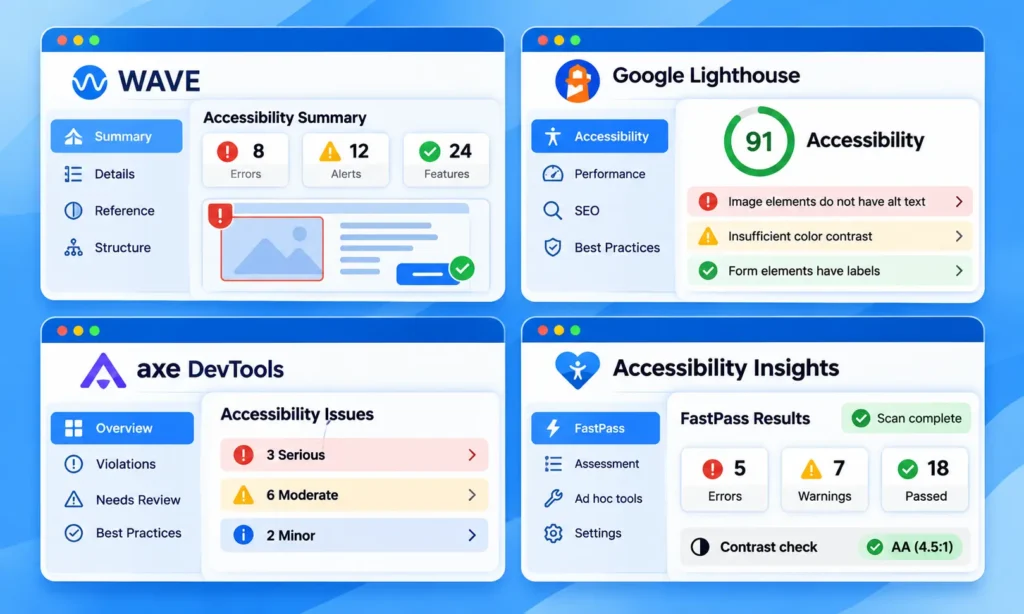
1. WAVE Web Accessibility Evaluation Tool
WAVE is a free website accessibility evaluation tool developed by WebAIM.
It helps identify accessibility errors and potential problems directly within a webpage.
WAVE can highlight:
- Missing alternative text
- Form labeling issues
- Certain color contrast problems
- Heading structure
- Accessibility-related page elements
Best for: Website owners who want visual feedback about accessibility problems.
How to use it: Open WAVE, enter a public webpage URL and review the results.
WAVE also provides browser extensions for testing pages directly in supported browsers.
2. Google Lighthouse
Google Lighthouse is an auditing tool available through Chrome DevTools.
It evaluates several areas of website quality including accessibility.
The accessibility audit can identify certain issues involving labels, document structure and accessible names.
Best for: Developers who want accessibility testing alongside performance and technical website checks.
How to use it: Open Chrome DevTools, select Lighthouse and generate an accessibility report.
Lighthouse is particularly convenient when you are already working on website performance.
3. axe DevTools
axe DevTools is an accessibility testing extension developed by Deque.
Its free extension includes automated accessibility checks.
The tool can identify issues and provide information that helps developers investigate them.
Best for: Developers who want detailed accessibility findings inside their browser.
How to use it: Install the supported browser extension, open your website and run an accessibility scan.
Some advanced capabilities require paid access.
4. Accessibility Insights
Accessibility Insights provides tools for identifying and investigating accessibility issues.
Its web testing tools include automated checks and guided assessment workflows.
Best for: Teams that want to combine quick automated testing with more structured accessibility reviews.
How to use it: Install the appropriate browser extension and run the available checks on your webpage.
5. Accessibility Checker by Equalize Digital
Accessibility Checker is designed to help WordPress website owners identify accessibility issues.
It integrates accessibility feedback into WordPress editing workflows.
Best for: WordPress website owners who want to review accessibility while creating or updating content.
How to use it: Review the plugin’s available features and use its accessibility reports within WordPress.
Free and paid functionality may differ.
6. W3C Markup Validation Service
The W3C Markup Validation Service checks HTML markup for errors and standards-related problems.
It is not a complete accessibility checker.
However, identifying invalid markup can help developers investigate issues that may affect how browsers and assistive technologies interpret a webpage.
Best for: Developers reviewing HTML quality alongside accessibility testing.
How to use it: Enter a public webpage URL and review the validation results.
7. W3C Accessibility Evaluation Resources
The W3C Web Accessibility Initiative provides guidance and resources for evaluating website accessibility.
Its materials explain automated testing, manual evaluation and accessibility standards.
Best for: Website owners and developers who want to understand how to conduct a more complete accessibility review.
How to use it: Follow the evaluation guidance and combine appropriate tools with manual checks.
Free Website Accessibility Testing Tools Comparison
| Tool | Main Purpose | Free Option | Best For |
|---|---|---|---|
| WAVE | Visual accessibility evaluation | Yes | Website owners |
| Google Lighthouse | Automated website auditing | Yes | Developers |
| axe DevTools | Browser-based accessibility testing | Yes | Technical testing |
| Accessibility Insights | Automated and guided testing | Yes | Structured reviews |
| Accessibility Checker | WordPress accessibility feedback | Available | WordPress websites |
| W3C Markup Validator | HTML validation | Yes | Markup review |
| W3C WAI Resources | Accessibility evaluation guidance | Yes | Manual evaluation |
No single tool can identify every accessibility issue.
For a more reliable review, use more than one testing method.
Common Website Accessibility Issues and How to Fix Them
Free accessibility tools can identify many common problems.
Understanding these issues helps you make meaningful improvements instead of focusing only on automated scores.
Missing Alternative Text
Images that communicate information should have meaningful alternative text.
Without appropriate alternative text, screen reader users may miss important content.
How to fix it: Add concise descriptions to informative images. Decorative images should generally use empty alternative text.
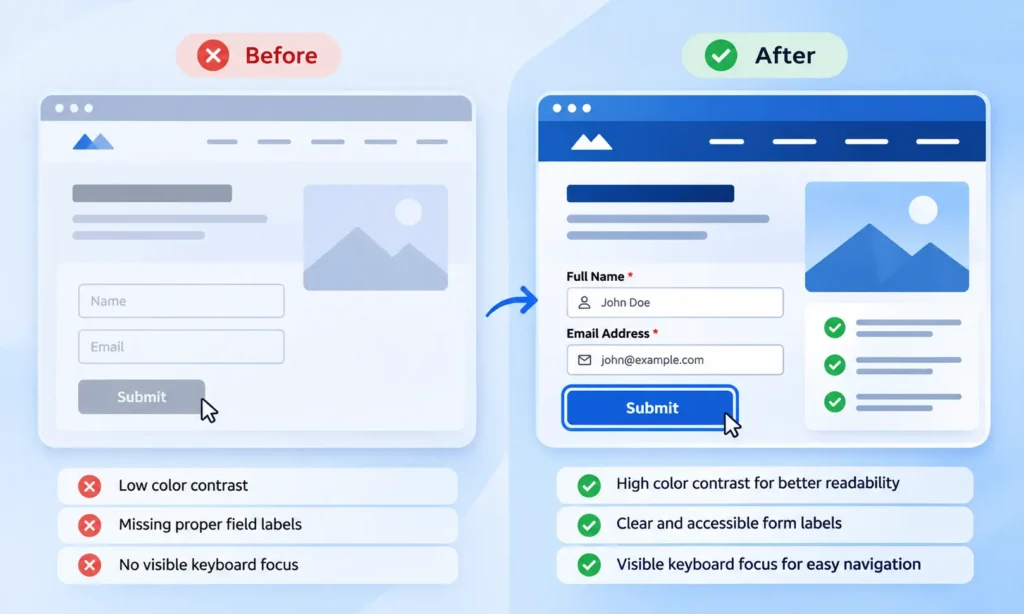
Low Color Contrast
Text with insufficient contrast can be difficult to read.
Light gray text on a white background is a common example.
How to fix it: Adjust foreground or background colors until the applicable contrast requirements are met.
Missing Form Labels
Forms may contain input fields that do not have accessible labels.
Placeholders alone are not a reliable replacement for proper labels.
How to fix it: Associate each input with a meaningful label and ensure error messages are understandable.
Poor Keyboard Navigation
Some websites contain menus, buttons or interactive components that cannot be used without a mouse.
How to fix it: Make interactive elements keyboard accessible and ensure focus indicators remain visible.
Incorrect Heading Structure
Headings help visitors understand the organization of a webpage.
A confusing heading hierarchy can make content harder to navigate.
How to fix it: Use one clear primary heading for the page and organize supporting sections with logical heading levels.
Inaccessible Interactive Components
Popups, tabs, accordions and custom dropdowns may create accessibility barriers.
How to fix it: Use accessible components, provide meaningful control names and test interactions with a keyboard and assistive technologies.
How to Test Accessibility on a WordPress Website
WordPress websites can be tested using the same accessibility tools as other websites.
Start by reviewing your homepage, main service pages, blog templates and contact forms.
If your website uses Elementor or another page builder, pay particular attention to custom widgets and interactive elements.
A practical WordPress accessibility checklist includes:
- Check that images have appropriate alternative text.
- Review heading hierarchy across templates.
- Test navigation menus with a keyboard.
- Confirm that contact forms have accessible labels.
- Check text contrast across global colors.
- Review popup and modal accessibility.
- Test mobile navigation and interactive elements.
- Run Lighthouse and WAVE after major changes.
Plugins can assist with selected accessibility improvements. However, installing an accessibility plugin does not automatically make a WordPress website compliant with WCAG.
Accessibility should be considered during design, development and ongoing maintenance.
Can Free Tools Make Your Website Fully Accessible?
Free accessibility tools are useful but they have limitations.
Automated scanners can detect many technical issues. They cannot reliably determine whether every interaction is understandable or whether the entire user experience works with assistive technologies.
For example, a tool may confirm that an image has alternative text. It may not determine whether that description accurately communicates the image’s purpose.
Similarly, automated checks may miss confusing navigation behavior or instructions that are difficult to understand.
A more complete accessibility review combines three approaches.
Automated testing: Use tools such as WAVE, Lighthouse and axe DevTools to identify detectable issues.
Manual testing: Review keyboard navigation, focus behavior, content structure and form interactions.
Assistive technology testing: Test important user journeys with a screen reader and other relevant technologies.
For websites with complex functionality or legal accessibility obligations, professional accessibility evaluation may also be appropriate.
Website Accessibility Testing Checklist
Use this checklist before launching a new website or completing a major redesign.
- Run an automated accessibility scan.
- Check important pages with more than one testing tool.
- Review image alternative text.
- Check text and button contrast.
- Confirm that forms have accessible labels.
- Test the website using only a keyboard.
- Review heading structure.
- Check that focus indicators are visible.
- Test important pages with a screen reader.
- Review mobile accessibility.
- Fix identified issues and repeat the tests.
Accessibility testing should not be treated as a one-time task.
New content, plugins and design changes can introduce problems even when a website previously passed its checks.
Frequently Asked Questions
How can I test website accessibility for free?
You can test website accessibility for free using WAVE, Google Lighthouse and axe DevTools. Start with an automated scan and then check keyboard navigation, screen reader compatibility and important user interactions manually.
What is the best free website accessibility testing tool?
WAVE is a useful starting point for visual accessibility reviews. Lighthouse is convenient for developers using Chrome. The best choice depends on the issues you need to investigate and no single tool provides a complete accessibility assessment.
Is Google Lighthouse enough for accessibility testing?
No. Lighthouse checks selected accessibility rules but cannot detect every problem. Combine it with manual keyboard testing, screen reader checks and other accessibility tools.
Can I test WordPress accessibility for free?
Yes. You can use WAVE, Lighthouse and other free tools to test WordPress pages. You should also review themes, plugins, forms and custom interactive elements.
Does passing an accessibility test mean my website is WCAG compliant?
Not necessarily. Automated tests cover only part of the accessibility requirements. A more complete evaluation requires manual review and testing of relevant user journeys.