WordPress speed optimization comes down to three moves. Choose reliable hosting with a fast server response. Add a caching plugin with a CDN. Keep your theme and plugins lean. This setup suits small business owners and service websites that want better rankings without a full rebuild.
A slow site loses visitors before they read a word. It also hurts page experience and search visibility. This guide shows you how to test your site and fix LCP, INP and CLS. You will also see what each fix costs and what it can return. Follow the steps in order and most sites can reach the good Core Web Vitals range within a few weeks.
Why Does WordPress Speed Optimization Matter for SEO and User Experience?
Google uses Core Web Vitals as part of its page experience signals. Speed is one ranking factor among many. Great content still matters most. But when two pages are equal the faster one often wins.
The bigger effect is on people. A long page load time makes visitors tap back and leave. Mobile performance matters most because many visitors use phones on weak networks.
Speed also protects your budget. Here is a simple example:
- 1,000 visitors with a 2% conversion rate gives you 20 leads.
- A faster site lifts that rate to 2.5%.
- You now get 25 leads from the same traffic and the same ad spend.
Better conversion rate and user engagement usually cost less than buying more traffic. That is why page speed SEO is a smart investment.

What Are Core Web Vitals and What Are the Good Scores?
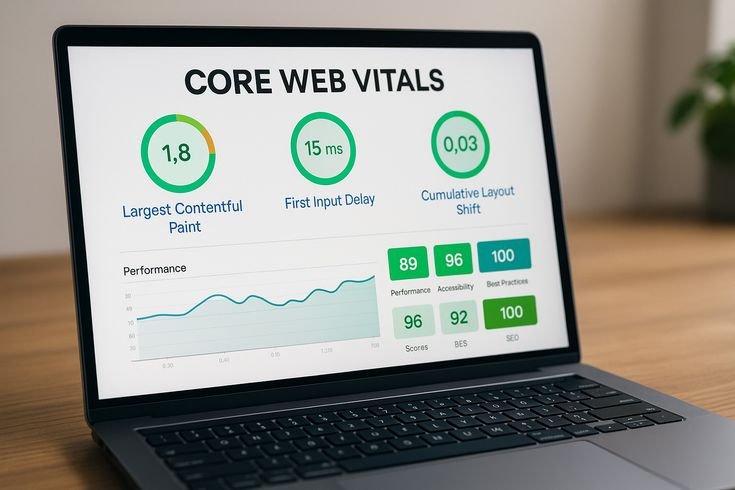
Core Web Vitals are three metrics that measure real user experience. Google judges each one at the 75th percentile of real visits. That means three out of four visits must meet the target.
- Largest Contentful Paint (LCP): how fast the main content loads. A good score is 2.5 seconds or less.
- Interaction to Next Paint (INP): how fast the page reacts to taps and clicks. A good score is 200 milliseconds or less.
- Cumulative Layout Shift (CLS): how stable the layout stays while loading. A good score is 0.1 or less.
INP replaced First Input Delay in 2024. Many older guides still mention the old metric. Aim for “good” Core Web Vitals scores on all three. Passing two out of three is not enough.
How to Test Your WordPress Site Speed
You need two kinds of data. Lab data comes from a controlled test. Field data comes from real visitors. Field data is what Google uses for ranking.
Follow these steps:
- Open Google PageSpeed Insights and test your homepage and your top service page.
- Check the field data section first. Then read the Lighthouse lab results.
- Open the Core Web Vitals report in Google Search Console. It groups URLs that need work.
- Test on mobile first.
- Note your server response time (TTFB). Aim for under 800 milliseconds.
For ongoing tracking use Real User Monitoring. Tools like this show how speed changes for real visitors over time. Test again after every major change so you know which fix worked.
Choose Fast WordPress Hosting and a Lightweight Theme
Hosting sets your speed ceiling. No plugin can fix a slow server. Reliable hosting gives you a low TTFB and stable uptime.
| Hosting Type | Best For | Typical Cost | Speed Potential |
|---|---|---|---|
| Shared hosting | Small brochure sites | Around $3 to $10 per month | Low to medium |
| Managed WordPress hosting | Business and lead sites | Around $25 to $60 per month | High |
| VPS or cloud hosting | Large or custom sites | Around $20 to $80 per month | High but needs setup |
For most business sites managed WordPress hosting gives the best return. It includes server caching and updates. That saves you hours and often replaces a paid plugin.
Your theme matters too. A lightweight WordPress theme like Kadence or GeneratePress loads less code than a heavy multipurpose theme. Page builders add weight when used badly. Elementor performance improves when you avoid deep nested sections and unused widgets. Page builder bloat is fixable with clean layouts.
If your theme is already heavy a rebuild can cost less than endless patching. A WordPress development team can build a lean theme around your content.
Optimize Images, Caching and CDN in WordPress
Images are the most common cause of slow pages. Fix them first.
Images
- Compress every image before upload.
- Use WebP or AVIF in WordPress. Both formats are much smaller than JPEG.
- Add lazy loading to images below the fold.
- Never lazy load your hero image. It is above the fold content and it should load first.
Caching
A WordPress caching plugin saves a ready made copy of each page. The server skips repeated work. Popular options are WP Rocket (paid at around $59 per year), LiteSpeed Cache (free), W3 Total Cache (free) and WP Super Cache (free). Use only one. Two caching plugins will clash. Also set browser caching so returning visitors reuse files already on their device.
CDN
A content delivery network serves your files from a location near each visitor. The free Cloudflare CDN plan is a good start for most small sites. It helps most when your audience is spread across countries.
Minify CSS/JavaScript and Remove Plugin Bloat
Large code files slow the first paint. Minification removes spaces and comments from files. File compression like Gzip or Brotli shrinks them further. Most caching plugins handle both.
Then deal with render blocking resources:
- Generate critical CSS so the visible part of the page styles first.
- Defer JavaScript that is not needed at load.
- Reduce unnecessary JavaScript from sliders and animation add ons.
- Delay third party scripts such as chat widgets and trackers until a user interacts.
Next comes plugin bloat. Every plugin adds code and database calls. Audit your list like this:
- Delete any plugin you do not use.
- Replace heavy plugins with lighter ones.
- Check slow queries with a tool like Query Monitor.
- Run WordPress database optimization to clear old revisions and expired transients.
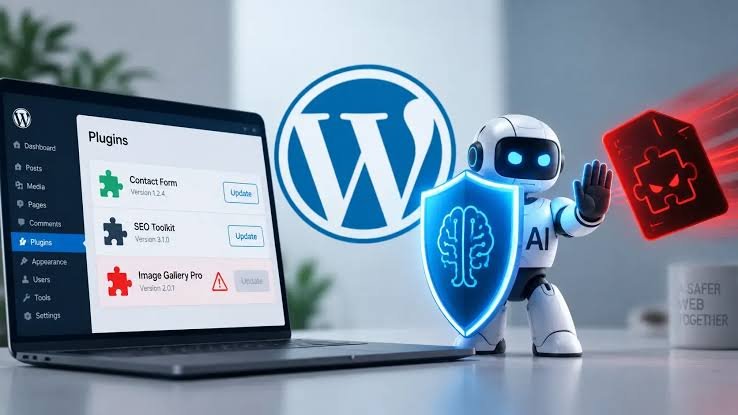
Fewer plugins also means a smaller attack surface. Our guide on WordPress security and PHP2Shell explains why a lean install is safer too.
How to Fix LCP, INP and CLS in WordPress
Fix LCP
LCP is usually your hero image or main heading. Try these fixes:
- Compress the hero image and serve it as WebP.
- Preload it and do not lazy load it.
- Improve TTFB with better hosting and page caching.
- Remove render blocking CSS and JavaScript.
Fix INP
Poor INP means the main thread is busy. Long tasks block taps and clicks. Try these fixes:
- Cut heavy scripts and unused plugins.
- Delay third party scripts.
- Replace complex sliders and popups with simple blocks.
- Split large tasks so the browser can respond between them.
Fix CLS
Layout shift happens when elements jump during loading. Try these fixes:
- Add width and height to every image.
- Use font display swap and preload your main font file.
- Reserve space for ads and embeds.
- Avoid banners that push content down after load.
Final Thoughts
WordPress speed optimization is a steady process. Start with hosting then fix images and caching then clean up code and plugins. Test again after each step. Strong performance also supports your SEO strategy because faster pages are easier to crawl and easier to enjoy. If you want expert help our website development team builds fast sites that pass Core Web Vitals from day one.
Frequently Asked Questions
What is a good page load time for a WordPress site?
Aim for your main content to load in 2.5 seconds or less on mobile. That matches the LCP target. Faster is always better for visitors.
Does WordPress speed optimization improve Google rankings?
It can help. Core Web Vitals are part of the page experience signals. Speed will not beat weak content but it can break a tie and it improves conversions.
How long does it take to see Core Web Vitals improve?
Lab tests update right away. Field data in Search Console uses a rolling 28 day window. Expect a few weeks before the report shows your gains.
Do I need a paid caching plugin?
Not always. Free plugins like LiteSpeed Cache work well on the right server. A paid plugin like WP Rocket saves setup time and gives simpler controls.
Why is my Lighthouse score good but Search Console shows poor results?
Lighthouse is lab data from one test. Search Console uses field data from real visitors on real devices. Slow phones and weak networks often make field results worse.