WordPress maintenance works best when someone owns it every week. The right maintenance approach depends on your website’s complexity and traffic and business needs. Some small websites can be maintained with a consistent DIY routine. Lead generating websites and online stores may benefit from professional maintenance support.
Either way updates are only a small part of the job. Security scans and tested backups matter just as much. So do form tests and speed checks and PHP upgrades. This guide shows what each one involves and what it costs. It also helps you decide when paying for help is cheaper than doing nothing.
Why WordPress Maintenance Is More Than Plugin and Theme Updates
Clicking “Update All” feels like maintenance. It isn’t the whole thing.
A WordPress site has a lot of moving parts. There’s core software and a theme and a pile of plugins. PHP and a database run on your server. Payment tools and email services sit on top. Any one of them can change on its own and break another.
That’s how a fully updated site still ends up with a dead contact form or a slow checkout. Real WordPress website maintenance checks that the whole setup still works for your customers. WordPress 7.1 was released in August 2026 and followed by additional maintenance and security updates. Keeping your installation current helps protect your website and maintain compatibility. Each one is another chance for something to clash.
WordPress Security Maintenance: Malware Scans, User Access and SSL
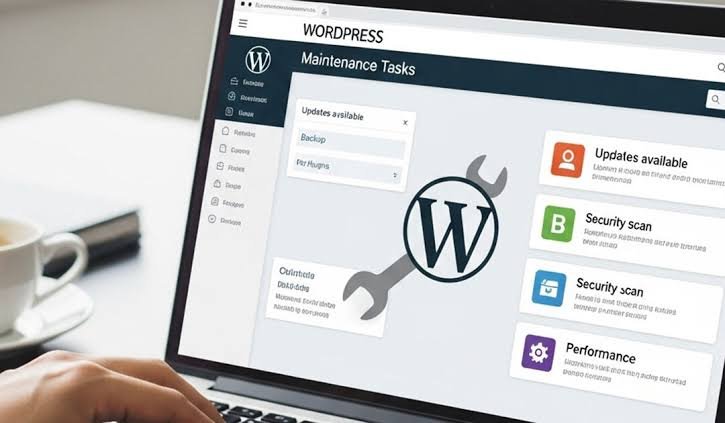
Outdated or vulnerable plugins can create security weaknesses that attackers may exploit. Regular updates and security checks help reduce these risks. Patching helps but it won’t catch everything.
- Malware and file scans flag changes you didn’t make.
- User role reviews remove old staff and former agencies. Keep administrator accounts to the bare minimum.
- Two factor authentication belongs on every admin login.
- SSL checks help ensure your certificate stays valid across the entire website including login and contact and checkout pages.
- Deleting unused plugins matters because deactivated code can still be exploited.
Fake plugins and cloned downloads are a growing problem too. Our piece on fake AI tools spreading malware shows how those tricks work.
Insurance is worth a look as well. Carriers often ask about backups and two factor login before they quote a policy. We cover that in cyber liability insurance in 2027.
Backup and Recovery: Can You Actually Restore Your Website?
A backup you’ve never restored is a guess. Some skip the database. Others sit on the same server as the site and die with it.
A backup routine you can trust has these pieces:
- Files and database both included.
- Offsite storage so a failed server doesn’t take your copies down with it.
- Retention means keeping enough backup history to recover from problems that may go unnoticed for several days or weeks. A 30 day period is a practical starting point for many business websites.
- A fresh backup before every big update.
- A restore test on a staging site every quarter.
Weekly backups may not be sufficient for stores processing orders throughout the day. Daily or more frequent backups can help protect recent order and customer data.
Backups also hold customer data so they need the same protection as the live site. Our guide to data governance in 2027 explains how to think about that.

Performance Monitoring: Speed, Core Web Vitals and Uptime
Sites slow down a little at a time. New plugins and bigger images and extra scripts all add weight.
Google’s Core Web Vitals give you clear targets:
- Largest Contentful Paint at 2.5 seconds or less
- Interaction to Next Paint at 200 milliseconds or less
- Cumulative Layout Shift at 0.1 or less
Run your homepage and key landing pages through PageSpeed Insights each month. Look at the mobile numbers first. Set up uptime monitoring with alerts too so you hear about downtime before a customer does.
When speed drops the cause is usually a new plugin or an oversized image or a third party embed. Once a year is too late to look. Monthly catches it while it’s still cheap to fix.
Form and Checkout Testing: Catching Lost Inquiries Early
Most owners skip this one and it’s where money leaks. A form can look perfect while the notification goes to someone who left two years ago.
Here’s a quick example. Say your site gets 40 inquiries a month and you close 1 in 4 at $2K a job. Two weeks of form downtime means about 20 lost leads. That could put around $10K in potential revenue at risk based on these assumptions.
Test every form like a visitor would:
- Submit a real inquiry.
- Confirm the thank you message appears.
- Check that the notification lands in an inbox someone actually reads.
- Make sure the lead reaches your CRM or email tool.
- On a WooCommerce store run a test order up to the payment step.
If emails go missing an SMTP service usually fixes it. Test monthly and after every update.
Database Health: Cleaning Revisions, Spam and Expired Transients
Your database collects clutter over time. Think post revisions and spam comments and trashed items. Add expired transients (temporary cached data) and tables left behind by plugins you deleted.
Removing unnecessary database records can reduce database size and simplify maintenance. However actual performance improvements depend on the website. Cap revisions at around 5 per post. Clear spam and trash. Remove leftover plugin tables. Back up first because database edits are hard to undo.
My take: a monthly pass is plenty. Avoid unnecessary automated database cleanups. Choose maintenance tools based on your website’s actual needs and always keep a backup before major changes.
Compatibility Checks: Core, Plugins, Themes and PHP Version
Most broken updates are really compatibility problems. A plugin that works today can fail on the next version of WordPress or PHP.
- Read the changelog before you update.
- Use a staging site for stores and sites with custom code.
- Update one item at a time on complex sites so you know what caused a problem.
- Replace plugins that their developers have abandoned.
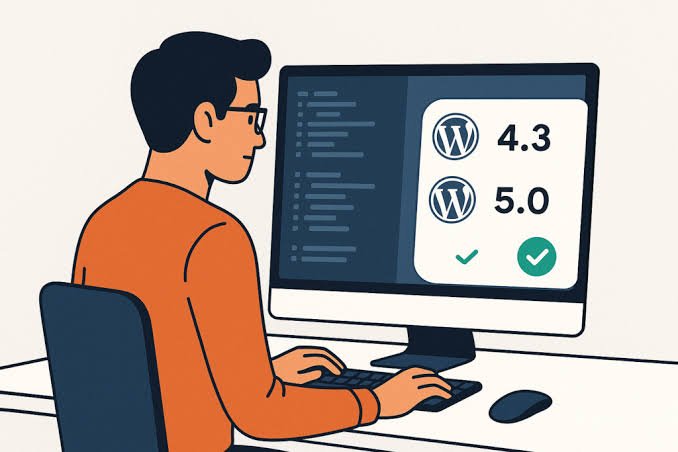
PHP deserves its own reminder. WordPress recommends PHP 8.3 or greater. PHP 8.2 reaches end of life on December 31 2026 while PHP 8.3 continues receiving security support through December 31 2027. PHP 8.4 and 8.5 are also supported options. Before upgrading check your hosting environment and test your plugins and theme for compatibility.
After any update click through the homepage and the menus and your forms and checkout.
What Should a WordPress Maintenance Plan Include?
A plan makes sense when the site earns money and nobody on staff can fix a broken layout after an update. Before you sign up ask each provider these questions:
- Updates: Are they tested on staging first and what happens if one breaks something?
- Backups: How often and where are they stored and are restores tested?
- Monitoring: Do you get security and uptime alerts?
- Response time: Who answers and how fast?
- Reporting: Will you get a monthly report of the work done?
- Scope: What’s routine and what’s billed extra like design changes?
Make sure your business retains ownership and administrator access to its hosting and domain and website accounts.
DIY vs Managed Plan vs Agency
The following figures are illustrative estimates and not fixed industry prices. Actual costs depend on website complexity and provider and support requirements.
| Option | Typical cost | Best for | Weak spot |
|---|---|---|---|
| DIY | $0 to $50 a month for tools plus your time | Simple websites | Tasks may get skipped |
| Managed plan | Around $100 to $300 a month | Business websites and stores | Limited design and development work |
| Agency retainer | $500 a month and up | Custom websites and larger stores | May be excessive for simple sites |
Does a Plan Pay Off?
Compare the fee with the cost of one bad week. A $150 plan costs $1800 a year. In the example above two weeks of lost inquiries could put about $10K at risk.
My honest take: if your site brings in even a few thousand dollars a month a plan is cheap insurance. If it’s a five page brochure site you can skip it and follow a simple checklist instead.
Final Thoughts on WordPress Maintenance
WordPress maintenance protects what your site exists to do. That means bringing in leads and taking orders and earning trust. Updates are only the starting line.
Pick DIY if the site is simple and you’ll really stick to the routine. Consider a managed maintenance plan if your website regularly generates leads or sales and you don’t have in house technical support. Either way start this week. Restore one backup to a staging site and send one test inquiry through your main form.
Frequently Asked Questions
How often should WordPress maintenance be done?
Review updates weekly and check important pages regularly. Backup frequency should depend on how often your website changes. Monthly checks can cover forms and performance and security while quarterly reviews can include restore testing and compatibility checks.
Can a WordPress update break my website?
Yes. Plugin and theme conflicts are the usual cause. A fresh backup and a staging test keep the damage small.
Do automatic updates replace manual maintenance?
No. They apply patches but they don’t test your forms or check your backups or watch your speed. Someone still needs to look.
What does a WordPress maintenance plan include?
Usually updates and offsite backups and security monitoring and uptime checks and support. Higher tiers add speed work and WooCommerce help. Always confirm the scope in writing.
Is WordPress maintenance worth it for a small business?
If the site brings in leads or sales it usually is. One lost week of inquiries often costs more than a year of a basic plan.